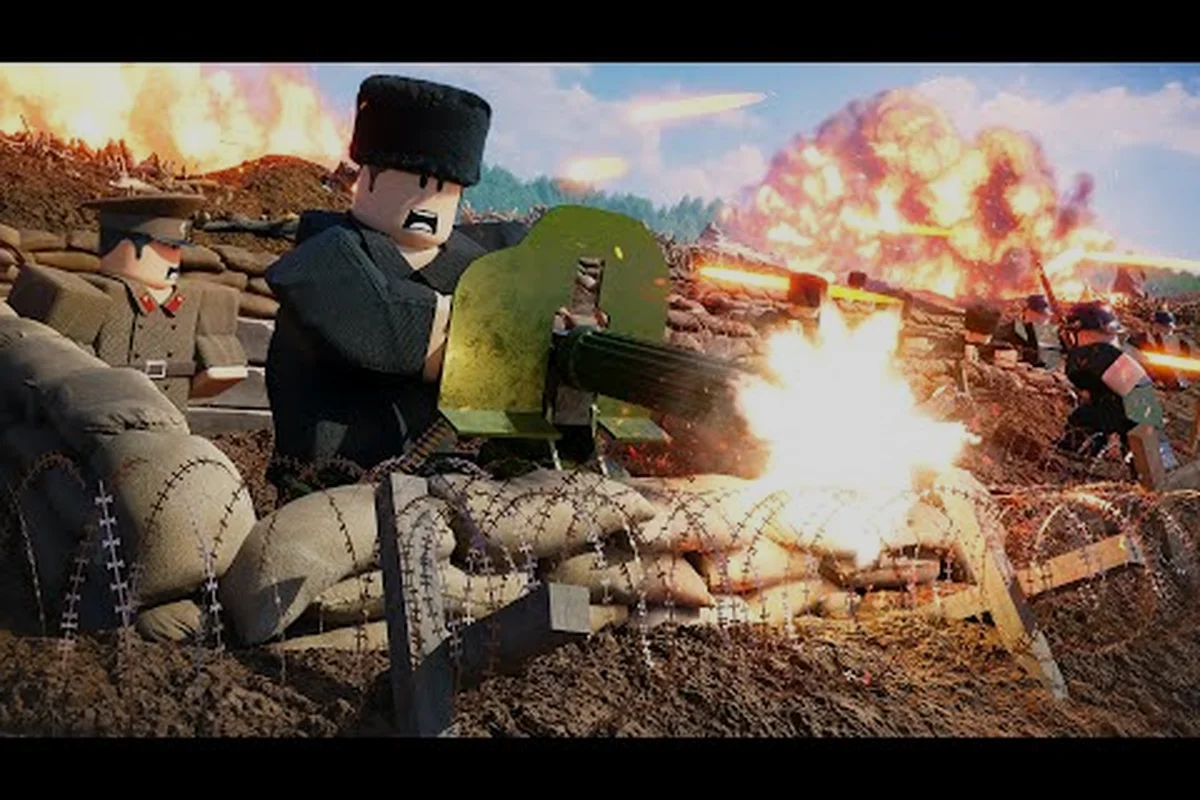
Jumping into a WW1-themed Roblox shooter is exciting, but knowing how to join a server in ENTRENCHED can save you from wasted time staring at loading screens. Whether you want to squad up with friends in a private lobby or find the most populated public match, this guide covers the entire process from start to finish. You will learn how to navigate the entrenched server list, set up your own entrenched private server, and apply proven entrenched lag fix techniques so your trench raids stay smooth.
Understanding the ENTRENCHED Server Browser
| Server Type | Max Players | Match Format | Typical Round Length |
|---|---|---|---|
| Frontlines | 32 | Turn-based attack-and-defense | 20–30 minutes |
| Conquest | 32 | Perpetual attack-versus-defense | 15–25 minutes |
| Domination | 32 | King-of-the-hill | 10–15 minutes |
| Map | Weather Variation | Introduced in Version | Faction Focus |
|---|---|---|---|
| Eisstadt | Yes | v1.23 | Entente vs Central Powers |
| Doiran | No | Pre-v1.23 | Frontlines rotation staple |
| Standard trench maps | No | Pre-v1.23 | Mixed rotation across all modes |
The server browser is your gateway to every match in this Roblox experience, and it works differently from the quick-play button most shooters use. Instead of blindly dropping you into a random lobby, ENTRENCHED gives you full control over which entrenched server list entry you join, which matters because map rotation and player counts vary wildly between sessions. The game, created by the verified Roblox group Edot, supports PC, Mobile, and Console, so the browser interface adapts to your platform while keeping the same core functionality.
When you open the game page on Roblox and hit the play button, you land on the main lobby screen. From there, locate the server browser icon—usually depicted as a globe or list symbol near the bottom of the screen. Clicking it opens the full entrenched server list, which displays every active instance sorted by default criteria like ping, player count, and region. This is where the magic happens: you can filter by game mode, map, or even search for a specific server name if you have friends already in a match.
Reading Server Information Correctly
Each entry in the entrenched server list shows critical data that determines your experience quality. The player count indicator tells you how full the server is, with numbers like 12/32 meaning 12 players are currently fighting out of 32 maximum slots. The ping column displays your connection latency in milliseconds, and anything under 80 ms is generally excellent for hit registration. The region tag helps you identify servers hosted in North America, Europe, Asia, or other areas, which directly impacts your ping.
Server names often include community-created labels that hint at the playstyle inside. For example, a server named "Frontlines Only - No Sniper Spam" signals a specific ruleset enforced by the host. Pay attention to these details because joining a server with rules you dislike wastes your time and frustrates other players. The game mode column shows whether the instance runs Frontlines, Conquest, or Domination, so you can pick the exact experience you want before committing to a load screen.
Sorting and Filtering for the Best Match
The entrenched server list includes sorting options that most players overlook. You can reorder entries by ping, player count, or map name with a single click on the column headers. Sorting by player count is the smartest move for beginners because fuller servers mean shorter queue times and more action per minute. Sorting by ping matters more if you play competitively and need consistent hit registration for sniper shots or melee lunges.
Filters let you narrow the entrenched server list by region, game mode, and even map rotation preferences. If you want to practice on a specific battlefield, the map filter is your best friend because it shows only servers running that map. Keep in mind that filtered servers may have longer wait times if the map you want is unpopular, so balance your preferences against availability. The filter system also hides empty servers by default, which saves you from joining a lobby where you wait alone for ten minutes.
Setting Up an ENTRENCHED Private Server
| Platform | Input Method | Server Browser Access | Notes |
|---|---|---|---|
| PC | Keyboard & mouse | Full server list with filters | Recommended for precise aiming |
| Mobile | Touch controls | Full server list with filters | Auto-fire assist available |
| Console | Gamepad | Full server list with filters | Aim assist enabled by default |
Creating an entrenched private server is the best way to play with friends, practice strategies, or host community events without random players interfering. The process requires a Roblox private server subscription, which costs Robux on a monthly basis, but the investment pays off if you play regularly with a consistent group. You can also use private servers to test class loadouts, explore maps without enemy pressure, or run organized scrimmages between two squads.
To create one, open the ENTRENCHED game page on Roblox and look for the "Servers" tab on the left sidebar. Click the "Create Private Server" button, name your server something memorable, and confirm the Robux payment. The server appears instantly in your private server list, and you can set it to "Friends Only" or "Anyone Can Join" depending on your preference. Friends Only mode requires players to send join requests that you approve, while Anyone Can Join lets anyone with the server link enter freely.
Configuring Your Private Server Settings
Once your entrenched private server exists, you gain access to configuration options that public servers lack. The server owner panel lets you set a password, toggle voice chat, and control whether players can respawn instantly or wait for the wave timer. You can also adjust the maximum player count within Roblox's technical limits, which is useful for small group sessions where you want a 5v5 instead of a full 16v16 brawl.
Password protection is essential for keeping randoms out of your practice sessions. Share the password only with trusted friends through Discord or your group chat, because anyone with the password can join and disrupt your training. The map rotation setting lets you lock the server to a single map or cycle through your favorites, which is perfect for mastering specific battlefields before moving to the next one.
Inviting Friends to Your Private Lobby
Inviting players to your entrenched private server takes just a few clicks. From the game page, click your private server entry and select "Invite Friends" to generate a shareable link. You can send this link through Discord, text message, or any other platform your group uses. Friends who click the link land directly in your lobby without navigating the entrenched server list, which removes friction and gets everyone into the action faster.
The server link system also works for community events, so you can post the link in your group's Discord channel and let members join at their leisure. If you want to host a tournament, create multiple private servers with different passwords for each team's practice space. This setup keeps competitive scrimmages organized and prevents accidental cross-team communication during matches.
Fixing Lag and Connection Issues
Nothing ruins a trench assault faster than rubber-banding, delayed hit registration, or a complete disconnect mid-fight. The entrenched lag fix process starts with understanding that Roblox games depend heavily on your connection to both the Roblox servers and the specific game instance. Your physical distance to the server host matters more than your raw internet speed, which is why the entrenched server list's region filter is your first line of defense against high ping.
Before blaming the game, run a basic network check. Close bandwidth-hungry applications like streaming services or large downloads, because they compete with Roblox for your connection's attention. If you play on Wi-Fi, consider switching to a wired Ethernet connection, which reduces packet loss and jitter significantly. These two changes alone resolve the majority of lag complaints reported by players in community forums.
Optimizing In-Game Settings for Performance
The entrenched lag fix extends beyond your network into the game's graphics settings. Lowering your graphics quality reduces the rendering load on your device, which frees up processing power for network handling. The graphics quality slider in Roblox settings directly impacts your frame rate, and higher FPS translates to smoother gameplay even if your ping stays the same. Players on low-end laptops should set graphics quality to 3 or below for the best balance between visuals and performance.
Disabling unnecessary visual effects like shadows and particle quality also helps, especially during intense Frontlines battles with dozens of players firing simultaneously. The particle density setting controls how many explosion effects render on screen, and reducing it prevents frame drops during artillery barrages. These settings changes might make the game look slightly less impressive, but the improved responsiveness is worth the visual trade-off.
Choosing the Right Server Region
Server region selection is the most impactful entrenched lag fix you can apply. The entrenched server list displays each server's region, and you should always prioritize servers in your geographic area. A player in New York will see dramatically better ping on a US East server than a US West server, even though both are in the same country. The ping column gives you an objective measurement, so sort by it and join the lowest-ping server that matches your preferred game mode.
If you consistently experience lag on every server in your region, the problem might be your internet service provider's routing to Roblox's infrastructure. Some players report that using a VPN with a nearby endpoint improves their connection by forcing a better route. This works because VPNs sometimes bypass congested network paths, though results vary by provider and location. Community reports suggest testing a free VPN trial before committing to a paid service for this purpose.
Game Modes and Server Selection Strategy
Different game modes attract different player types, and your server choice should match your skill level and goals. Frontlines is the turn-based attack-and-defense mode where teams alternate between attacking and defending objectives, making it the most strategic option for coordinated squads. Conquest offers perpetual attack-versus-defense gameplay that never stops, which appeals to players who want constant action without downtime. Domination is king-of-the-hill style combat where controlling a central point determines the winner.
Beginners should start with Conquest because the continuous respawns and straightforward objectives let you learn the game's mechanics without the pressure of turn-based timing. Experienced players gravitate toward Frontlines for its tactical depth, while Domination provides a middle ground with focused chaos. The entrenched server list lets you filter by mode, so you can always find the exact experience you want rather than settling for whatever the quick-play button throws at you.
Server Population and Match Quality
The entrenched server list's player count column reveals more than just how many people are online. A server at 30/32 players offers a completely different experience than one at 8/32, and both have advantages. Full servers deliver constant action with frequent encounters, but they also have longer queue times for team balance and more competition for kills. Sparse servers let you explore maps freely and practice aiming without constant threat, but they can feel empty and slow.
For new players, joining a server with 15-20 players provides the ideal balance between action and breathing room. You encounter enemies regularly enough to improve your skills, but you also have space to learn the maps without getting spawn-killed every thirty seconds. As you gain confidence, graduate to fuller servers where the competition pushes you to refine your tactics and positioning.
Map Rotation and Learning Opportunities
Each server runs a specific map rotation, and the entrenched server list displays the current map for every instance. If you want to learn a particular battlefield, filter the list by that map and join a server running it. This targeted approach accelerates your map knowledge faster than random rotation because you get concentrated practice on one battlefield at a time. The game's v1.23 update added the new map Eisstadt with weather variation, so you might want to prioritize servers running it to experience the latest content.
Learning maps systematically pays dividends in combat effectiveness. Knowing the flanking routes, sniper sightlines, and objective positions on each map lets you outmaneuver opponents who rely on brute force. Our ENTRENCHED maps tier list breaks down every battlefield's strengths and weaknesses, helping you decide which maps deserve your practice time. Pair that knowledge with the right server selection, and you will consistently outperform players who join random lobbies without a plan.
Advanced Server Features and Community Tools
Beyond the basic browser and private server system, ENTRENCHED offers advanced features that power users should know about. The favorite server system lets you bookmark servers you enjoy, so you can return to them with one click instead of searching the entrenched server list every session. This is especially useful for finding consistent communities with good sportsmanship and active players who communicate effectively.
The server history tab shows your recently joined servers, which helps you reconnect to a match after an accidental disconnect. If your game crashes mid-battle, the history tab gets you back into the same server within seconds, preserving your progress and loadout. This feature is a lifesaver during intense Frontlines matches where leaving and rejoining could cost your team the objective.
Using the Roblox Group Integration
The ENTRENCHED developer group, Edot, maintains an active presence on the Roblox Developer Forum where players discuss server issues, report bugs, and suggest improvements. According to community discussions, the developers actively monitor feedback about server stability and matchmaking quality. If you encounter persistent server problems, checking the forum can reveal whether the issue is known and whether a fix is already in development.
The official ENTRENCHED game page on Roblox also lists update notes and patch details, so you can track changes to the server system over time. Version v1.23 introduced the new Eisstadt map with weather variation plus new skins, and future updates may add more server features based on player feedback. Staying informed about these changes helps you adapt your server selection strategy as the game evolves.
Troubleshooting Common Server Errors
Server errors happen to everyone eventually, and knowing how to fix them saves you from frustrating dead ends. The "Server Full" error appears when you try to join a server that hit its player cap, and the solution is simply refreshing the entrenched server list and picking another entry. The "Connection Timed Out" error usually indicates a network issue between you and the server host, which the region filter and network optimizations mentioned earlier can resolve.
If you encounter the "Failed to Join" error, try rejoining the server after a short wait, because the issue often stems from temporary server instability. Clearing your Roblox cache also resolves many connection errors by forcing the client to re-download corrupted data. Players who master these troubleshooting steps spend less time staring at error screens and more time fighting in the trenches.
Frequently Asked Questions
How do I join a specific server in ENTRENCHED?
Open the server browser from the main lobby and browse the entrenched server list. Click any server entry to join it directly, or use the filter options to narrow results by game mode, map, or region. The server browser gives you full control over which match you enter.
Can I create an entrenched private server for free?
No, creating an entrenched private server requires a Roblox private server subscription, which costs Robux monthly. The subscription gives you a dedicated server instance that you can configure with passwords, map rotations, and player limits. Friends can join through a shareable link without needing their own subscription.
Why is my ping high even on nearby servers?
High ping on nearby servers usually stems from your local network or device performance rather than the server location. Close bandwidth-heavy applications, switch from Wi-Fi to Ethernet, and lower your graphics quality settings. If the problem persists, test a VPN with a nearby endpoint to potentially improve routing.
What is the best entrenched lag fix for low-end PCs?
The most effective entrenched lag fix for low-end PCs combines graphics quality reduction with particle density lowering. Set graphics quality to 3 or below and disable shadows to boost frame rates. Additionally, close background applications and ensure your network connection is stable before joining a match.
How do I rejoin a server after a disconnect?
Open the server browser and click the Recent tab to find your last joined server. Select it to rejoin instantly, keeping your loadout and progress intact. Act fast, since popular Frontlines or Conquest servers fill up quickly, and you may end up waiting in a queue or landing on a different map rotation.